警告
本节包含自动从C++翻译到Python的代码片段,可能包含错误。
图像合成示例#
展示了如何使用QPainter中的合成模式。
图像合成示例允许用户使用QPainter支持的任何合成模式组合图像,详细描述在《合成模式》中。
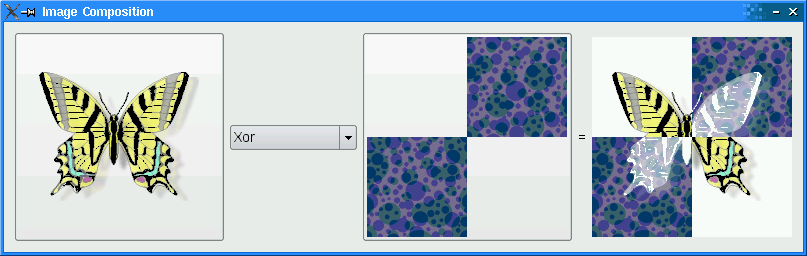
设置资源文件#
图像合成示例需要两个源图像,分别是butterfly.png和checker.png,它们嵌入在imagecomposition.qrc文件中。该文件包含以下代码
<Code snippet "/data/qt5-full-670/6.7.0/Src/qtbase/painting/imagecomposition/imagecomposition.qrc" not found>
有关资源文件的更多信息,请参阅《Qt资源系统》。
ImageComposer类定义#
ImageComposer类是QWidget的子类,实现了三个私有槽,分别为chooseSource("、chooseDestination()和recalculateResult()。
class ImageComposer(QWidget):

    Q_OBJECT
# public
    ImageComposer()
# private slots
    def chooseSource():
    def chooseDestination():
    def recalculateResult():
此外,ImageComposer包含五个私有函数,分别为addOp()、chooseImage()、loadImage()、currentMode()和imagePos(),以及私有实例的QToolButton、QComboBox、QLabel和QImage。
# private
    def addOp(mode, name):
    def chooseImage(title, image, button):
    def loadImage(fileName, image, button):
    QPainter.CompositionMode currentMode()
    imagePos = QPoint(QImage image)
    sourceButton = QToolButton()
    destinationButton = QToolButton()
    operatorComboBox = QComboBox()
    equalLabel = QLabel()
    resultLabel = QLabel()
    sourceImage = QImage()
    destinationImage = QImage()
    resultImage = QImage()
ImageComposer类实现#
我们声明了一个名为resultSize的QSize对象,作为静态常量,宽度和高度均为200。
resultSize = QSize(200, 200)
在构造函数中,我们实例化了一个QToolButton对象,名为sourceButton,并将其iconSize属性设置为resultSize。然后使用addOp()函数实例化了operatorComboBox,并使用该函数填充。此函数接受QPainter::CompositionMode,名为mode,以及一个表示合成模式名称的QString,名为name。
def __init__(self):

    sourceButton = QToolButton()
    sourceButton.setIconSize(resultSize)
    operatorComboBox = QComboBox()
    addOp(QPainter.CompositionMode_SourceOver, tr("SourceOver"))
    addOp(QPainter.CompositionMode_DestinationOver, tr("DestinationOver"))
    addOp(QPainter.CompositionMode_Clear, tr("Clear"))
    addOp(QPainter.CompositionMode_Source, tr("Source"))
    addOp(QPainter.CompositionMode_Destination, tr("Destination"))
    addOp(QPainter.CompositionMode_SourceIn, tr("SourceIn"))
    addOp(QPainter.CompositionMode_DestinationIn, tr("DestinationIn"))
    addOp(QPainter.CompositionMode_SourceOut, tr("SourceOut"))
    addOp(QPainter.CompositionMode_DestinationOut, tr("DestinationOut"))
    addOp(QPainter.CompositionMode_SourceAtop, tr("SourceAtop"))
    addOp(QPainter.CompositionMode_DestinationAtop, tr("DestinationAtop"))
    addOp(QPainter.CompositionMode_Xor, tr("Xor"))
    addOp(QPainter.CompositionMode_Plus, tr("Plus"))
    addOp(QPainter.CompositionMode_Multiply, tr("Multiply"))
    addOp(QPainter.CompositionMode_Screen, tr("Screen"))
    addOp(QPainter.CompositionMode_Overlay, tr("Overlay"))
    addOp(QPainter.CompositionMode_Darken, tr("Darken"))
    addOp(QPainter.CompositionMode_Lighten, tr("Lighten"))
    addOp(QPainter.CompositionMode_ColorDodge, tr("ColorDodge"))
    addOp(QPainter.CompositionMode_ColorBurn, tr("ColorBurn"))
    addOp(QPainter.CompositionMode_HardLight, tr("HardLight"))
    addOp(QPainter.CompositionMode_SoftLight, tr("SoftLight"))
    addOp(QPainter.CompositionMode_Difference, tr("Difference"))
    addOp(QPainter.CompositionMode_Exclusion, tr("Exclusion"))
实例化了 destinationButton 并设置了其 iconSize 属性为 resultSize。同时创建了 QLabel 对象 equalLabel 和 resultLabel,并且设置了 resultLabel 的 minimumWidth。
destinationButton = QToolButton()
destinationButton.setIconSize(resultSize)
equalLabel = QLabel(tr("="))
resultLabel = QLabel()
resultLabel.setMinimumWidth(resultSize.width())
我们将以下信号连接到相应的槽函数
将
sourceButton的clicked()信号连接到chooseSource(),将
operatorComboBox的activated()信号连接到recalculateResult(),以及将
destinationButton的clicked()信号连接到chooseDestination()。sourceButton.clicked.connect( self.chooseSource) operatorComboBox.activated.connect( self.recalculateResult) destinationButton.clicked.connect( self.chooseDestination)
使用了 QGridLayout 对象 mainLayout 来放置所有的小部件。请注意,将 mainLayout 的 sizeConstraint 属性设置为 SetFixedSize,这意味着 ImageComposer 的大小不能被调整。
mainLayout = QGridLayout()
mainLayout.addWidget(sourceButton, 0, 0, 3, 1)
mainLayout.addWidget(operatorComboBox, 1, 1)
mainLayout.addWidget(destinationButton, 0, 2, 3, 1)
mainLayout.addWidget(equalLabel, 1, 3)
mainLayout.addWidget(resultLabel, 0, 4, 3, 1)
mainLayout.setSizeConstraint(QLayout.SetFixedSize)
setLayout(mainLayout)
创建了一个 QImage 对象,resultImage,并调用了两次 loadImage() 函数来加载 imagecomposition.qrc 文件中的两个图像文件。然后,我们将 windowTitle 属性设置为“Image Composition”。
resultImage = QImage(resultSize, QImage.Format_ARGB32_Premultiplied)
loadImage(":/images/butterfly.png", sourceImage, sourceButton)
loadImage(":/images/checker.png", destinationImage, destinationButton)
setWindowTitle(tr("Image Composition"))
chooseSource() 和 chooseDestination() 是一些方便的函数,它们使用特定的参数调用 chooseImage()。
def chooseSource(self):

    chooseImage(tr("Choose Source Image"), sourceImage, sourceButton)

def chooseDestination(self):

    chooseImage(tr("Choose Destination Image"), destinationImage, destinationButton)
chooseImage() 函数根据 title,image 和 button 来加载用户选择的图像。
def chooseImage(self, title, image,):
                                QToolButton button)

    fileName = QFileDialog.getOpenFileName(self, title)
    if not fileName.isEmpty():
        loadImage(fileName, image, button)
recalculateResult() 函数用于计算并显示用户选择的组合模式下的两个图像组合的结果。
def recalculateResult(self):

    QPainter.CompositionMode mode = currentMode()
    painter = QPainter(resultImage)
    painter.setCompositionMode(QPainter.CompositionMode_Source)
    painter.fillRect(resultImage.rect(), Qt.transparent)
    painter.setCompositionMode(QPainter.CompositionMode_SourceOver)
    painter.drawImage(0, 0, destinationImage)
    painter.setCompositionMode(mode)
    painter.drawImage(0, 0, sourceImage)
    painter.setCompositionMode(QPainter.CompositionMode_DestinationOver)
    painter.fillRect(resultImage.rect(), Qt.white)
    painter.end()
    resultLabel.setPixmap(QPixmap.fromImage(resultImage))
addOp() 函数用于向 operatorComboBox 添加一个项目,使用 QComboBox 的 addItem 方法。此函数接受一个 QPainter::CompositionMode,mode,以及一个 QString,name。矩形以 Qt::Transparent 填充,然后绘制 sourceImage 和 destinationImage,最后在 resultLabel 上显示。
def addOp(self, mode, name):

    operatorComboBox.addItem(name, mode)
loadImage() 函数使用 fillRect() 绘制透明背景,并使用 drawImage() 在中央位置绘制 image。然后,将此 image 设置为 button 的图标。
def loadImage(self, fileName, image,):
                              QToolButton button)

    image.load(fileName)
    # Scale the image to given size
    image = image.scaled(resultSize, Qt.KeepAspectRatio)
    fixedImage = QImage(resultSize, QImage.Format_ARGB32_Premultiplied)
    painter = QPainter(fixedImage)
    painter.setCompositionMode(QPainter.CompositionMode_Source)
    painter.fillRect(fixedImage.rect(), Qt.transparent)
    painter.setCompositionMode(QPainter.CompositionMode_SourceOver)
    painter.drawImage(imagePos(image), image)
    painter.end()
    button.setIcon(QPixmap.fromImage(fixedImage))
    image = fixedImage
    recalculateResult()
currentMode() 函数返回在 operatorComboBox 中选中的合成模式。
QPainter.CompositionMode ImageComposer.currentMode()

    return (QPainter.CompositionMode)
           operatorComboBox.itemData(operatorComboBox.currentIndex()).toInt()
我们使用 imagePos() 函数确保 QToolButton 对象,sourceButton 和 destinationButton,的图像居中。
def imagePos(self, QImage image):

    return QPoint((resultSize.width() - image.width()) / 2,
                  (resultSize.height() - image.height()) / 2)
`` main()``
函数#
main() 函数创建 QApplication 和 ImageComposer 的实例,并调用其 show() 方法。
if __name__ == "__main__":

    app = QApplication([])
    composer = ImageComposer()
    composer.show()
    sys.exit(app.exec())